Difficulty
Moderate
Steps
6
Time Required

In Progress
This guide is currently being written. Reload periodically to see the latest changes.

User-Contributed Guide
This guide is not managed by the site's staff.

Private
This guide will not appear in search results and can only be viewed by team members!
Quiz
0
-
-
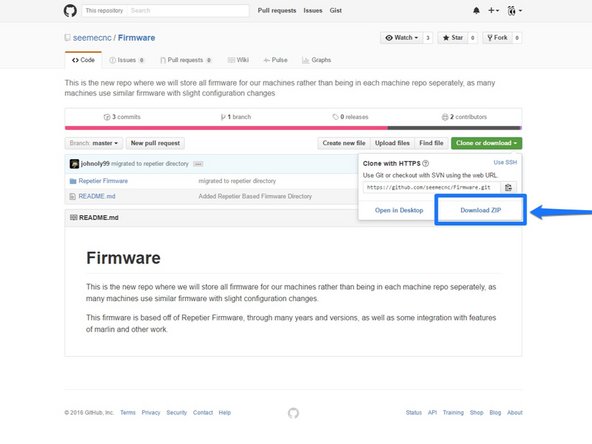
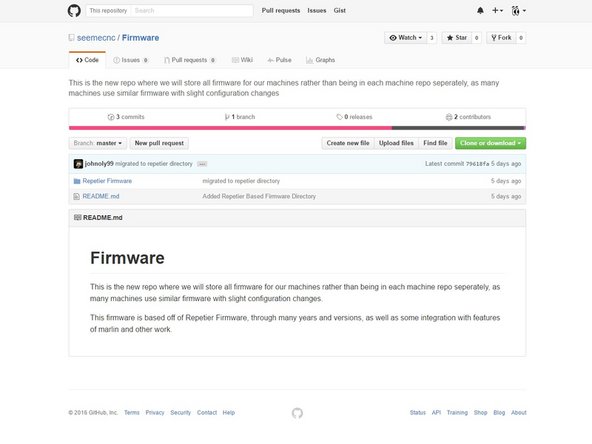
You can Download the firmware here: https://github.com/seemecnc/Firmware
-
Extract the files from the zipped folder.
-
If you are new to extracting files, you will need to go to the folder where the firmware was downloaded to (most commonly your downloads folder)
-
Right Click on the folder named: Firmware Master, and from the options available choose EXTRACT ALL.
-
Choose Extract in the dialogue box that pops up.
-
You can now copy and past the extracted folder of firmware files to your preferred location ie. Desktop, My Documents etc.
-
-
-
In order to compile and upload the firmware to the RAMBo controller, you're going to need the Arduino IDE. This is an open source software development environment targeted at the Arduino family of ATMega-based micro-controller project boards. At its heart, the RAMBo controller is just an Arduino Mega 2560 with a lot of goodies attached to it.
-
You can download the Windows, MacOS and Linux version of the Arduino IDE from here: https://www.arduino.cc/en/Main/OldSoftwa... Choose the appropriate Platform. As of the time of this writing, we are using Arduino 1.6.4 There are many versions available of Arduino, but all are compatible.
-
Start the Arduino IDE – you should be presented with a screen that looks similar to the first image on the left:
-
-
-
Before we can use the IDE to upload the firmware to the Mini RAMBo controller, we need to tell the Arduino IDE what kind of board we have and what communications port it needs to use in order to perform the upload task.
-
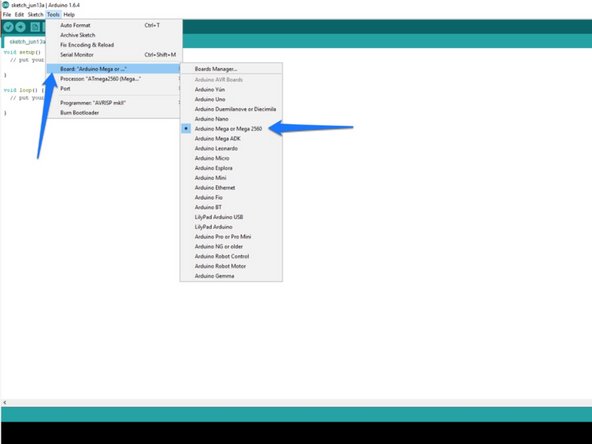
Click on the “Tools” menu item and then click on “Board” and then “Arduino Mega or Mega 2560”.
-
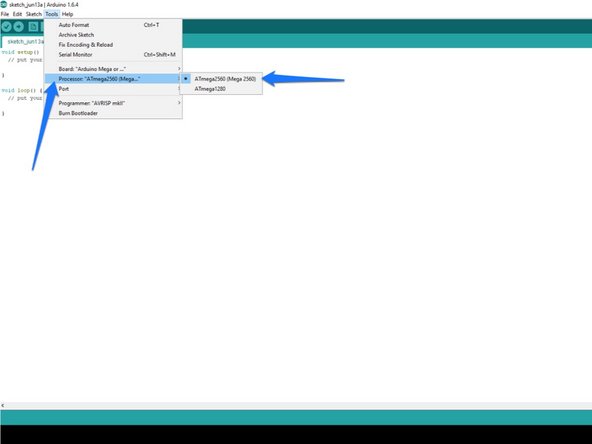
Click on the “Tools” menu item and then click on “Processor” and then “AT Mega (Mega 2560)”.
-
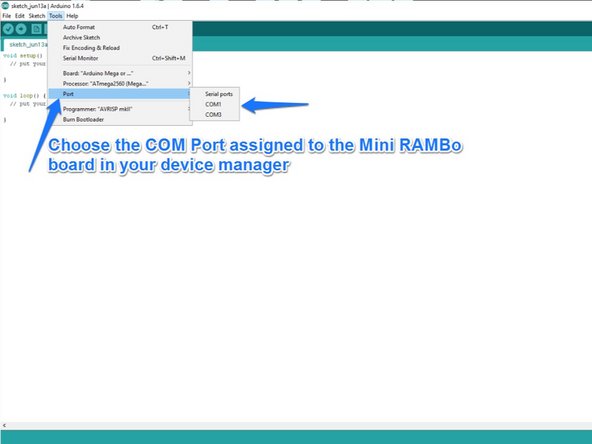
Next, you'll need to tell the Arduino IDE what port to talk to the RAMBo on. To do this, click on “Tools”, “Serial Port” and then choose the COM port that your RAMBo appears as on your computer. (you can find this in the device manager)
-
-
-
Download NanoDLP: http://www.nanodlp.com/nanodlp.zip
-
Extract the files after the download has completed.
-
-
-
Based on your computer's operating system follow one of these guides for:
-
-
-
-
NOTE: To copy NanoDLP SD image file, you need a computer with card reader.
-
-
-
Put microSD card into Raspberry Pi and turn the power to the Droplit v2 on
-
Connect an ethernet cable to the Raspberry Pi and your Router (this is a one time setup requirement until the wifi has been connected)
-
To find out your Raspberry Pi's IP address open your computer's network area. Or visit the online dashboard http://www.nanodlp.com/dashboard to see online nanoDLP printers in your network
-