-
-
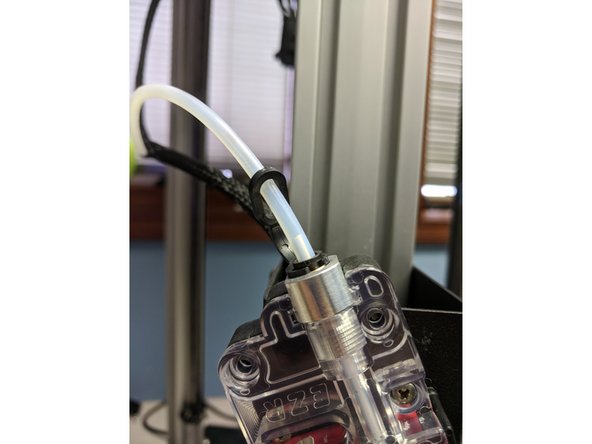
You can load filament by heating the hot end up to 220 degrees and manually feeding the filament in through the EZR and Bowden tube, or by using the "Filament Load" macro
-
To use the load filament macro, hold in the red button on the EZR extruder and press the filament in until it is just peeking out the side with the Bowden tube. Then click "Filament Load" under User-Defined Macros, and click OK.
-
-
-
-
-
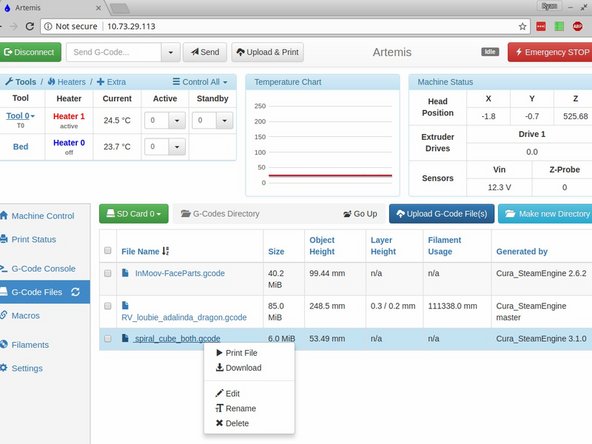
Upload and print your first gcode file. You can do this two different ways. You can either click "Upload & Print" at the top of the page, or click on G-Code files at the side of the page, then "Upload G-Code File(s)", then select your file from the list.
-
If you'd like a pre-sliced file for your first print, FIRST PRINT
-
NOTE: On the first heatup of your bed, you may notice a small amount of smoke from the bed / base of the printer. This is nothing to worry about, this is excess residue on the silicone bed from the manufacturing process. We cycle every bed at SeeMeCNC before shipping to reduce / eliminate this issue, but some are more determined than others.
-
-
-
We recommend using Cura for slicing. All v3.2 testing is performed with Cura and our slicing profiles for our printers will get you going fast! Click here to see our guide for installing Cura and downloading our profiles for your new printer.
-