Difficulty
Moderate
Steps
4
Time Required

In Progress
This guide is currently being written. Reload periodically to see the latest changes.

Private
This guide will not appear in search results and can only be viewed by team members!
Quiz
0
-
-
Let's outline one method of updating Cura slicing software on a Windows computer. ! Caution ! Use this information at your own risk. We can only report our own experience using these software tools and our combination of things we've found to work well for us.
-
Also, if you make a mistake by accident, you can mess up your windows installation and possibly lose data. Please be the judge of your own personal skill level here. We can not help if you mess up your computer.
-
Here at SeeMeCNC, we help quite a few customers in the course of a year. There are all types of questions and slicing software problems are something we are asked from time to time.
-
Although software troubleshooting is a outside the scope of what we do (build high value highly reliable 3D printers), we still want to see every customer be successful in additive manufacturing.
-
-
-
The software related to this article:
-
Revo Uninstaller (free version)
-
Cura 4.2.1 (current as of this writing)
-
Windows 10
-
Since 2017, we have recommended Cura slicing software. It's a free solution for slicing models and does a very good job. Recently, the Cura team fixed some issues with single head dual filament extrusion.
-
This is exciting because we've only recommended Cura 3.4.1 for almost 2 years now. And we really like things happening in current releases of the software. Let's get started!
-
-
-
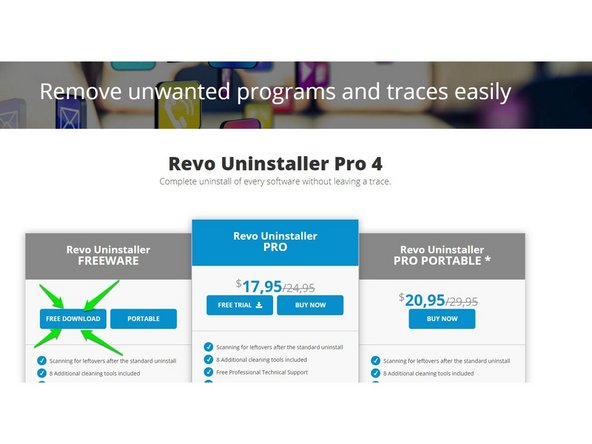
Use Revo Uninstaller free version.
-
Uninstall previous versions of Windows software using Revo Uninstaller free version software. We have 15+ years experience using this software and haven't botched windows yet. The company makes a solid product for advanced uninstalling of windows programs.
-
In the next step you we will tell you how to fully remove previous versions of Cura.
-
-
-
Run the Revo Uninstaller program and select the previous version of Cura to be uninstalled. Repeat if multiple Cura versions exist.
-
Revo automatically launches the uninstaller for the program selected, in this case Cura. Revo is now "watching" everything that program does (don't ask us how, it just works like magic).
-
Select "uninstall" from the programs regular uninstall window. If you're prompted to restart, DON'T RESTART, simply close that programs uninstall window.
-
Returning to Revo Uninstall windows titled "Performing the initial analysis and uninstall", select "advanced", and the button "Scan".
-
When Revo finished, choose "select all" and then "delete". Revo performs a second scan, choose "select all" and then "delete".
-
Revo is finished finding tons of garbage leftover by windows software installations. This is typical of many windows programs and just how it is.
-
Close Revo.
-