Difficulty
Moderate
Steps
4
Time Required
- Setting up CURA 4 steps

In Progress
This guide is currently being written. Reload periodically to see the latest changes.

Private
This guide will not appear in search results and can only be viewed by team members!
Quiz
0
-
-
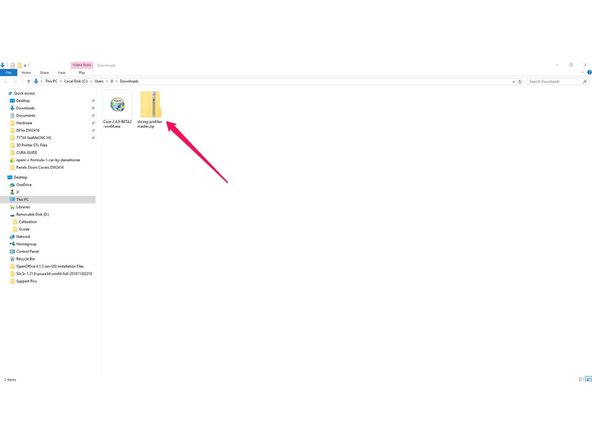
Follow this link to download CURA.
-
SeeMeCNC settings are currently aligned to be version 3.1
-
-
-
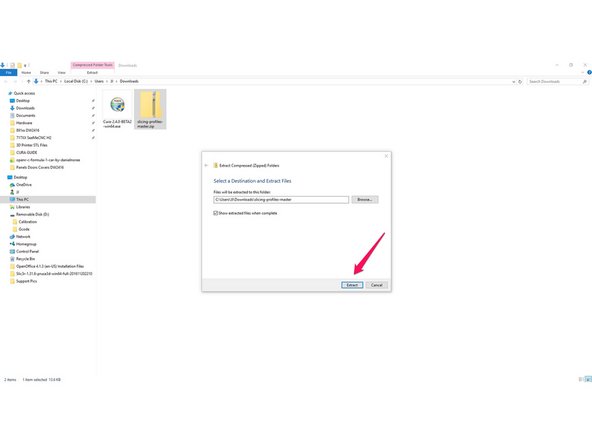
Download and extract the SeeMeCNC Slicing Profiles
-
Save/move them to a location where you can access them in the future steps / or to return to defaults.
-
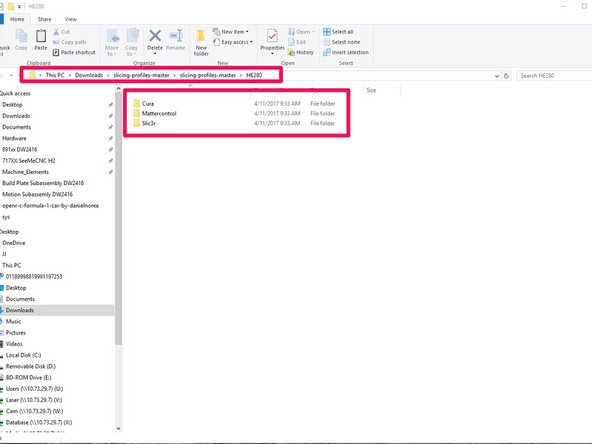
There are several different pre-configured slicing profiles for you to choose from. They have been broken into categories for hot end type (ERIS, HE280, & SE300) and slicing engine(MatterControl, Slic3r, & Cura) . This guide will show you how to import the appropriate settings in future steps.
-
HE280 comes stock on all Orion Delta and Rostock Max v3 printers
-
SE300 comes stock on the Artemis 300
-
-
-
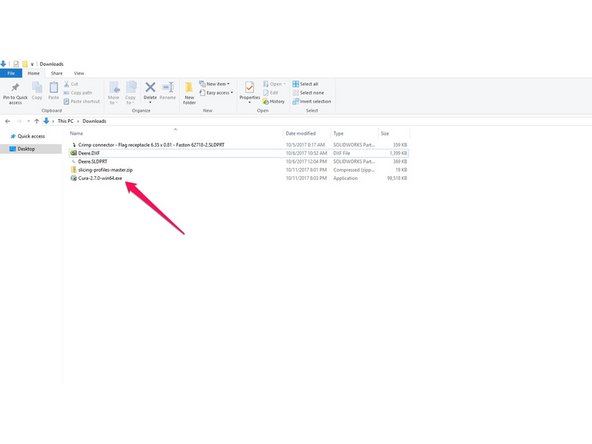
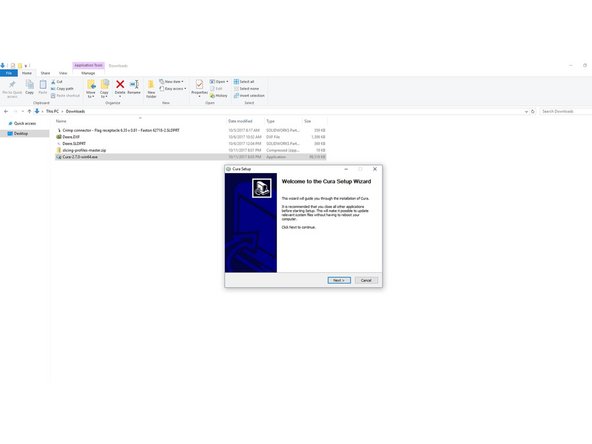
Double click on the Cura install that you downloaded.
-
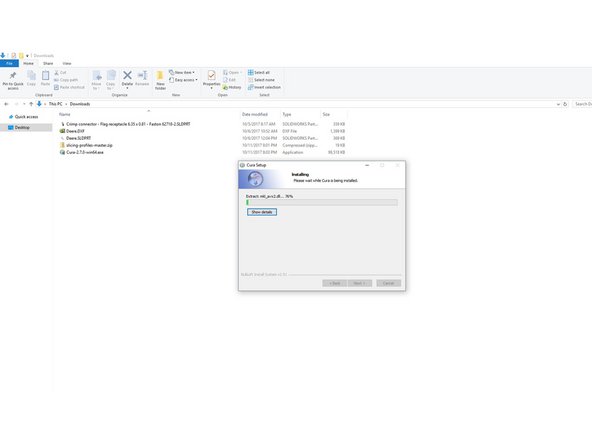
Follow through the prompts to specify the installation location, file types, etc.
-
When the install is complete, click the finish button on the setup dialog, that will automatically launch Cura.
-
-
-
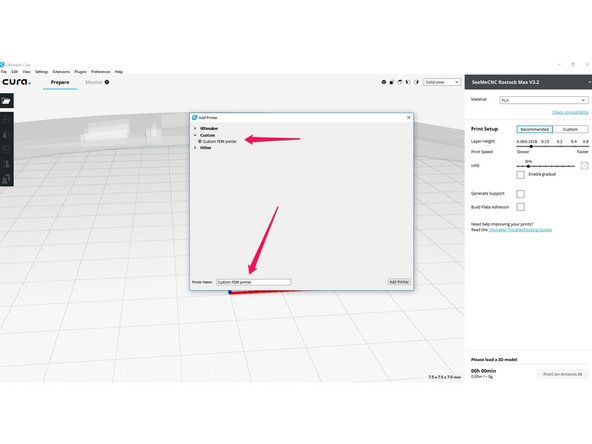
When CURA opens you will automatically be presented with the option to add a printer. Choose: Custom > Custom FDM printer
-
Give the printer a Name (Your Preference)
-
Click on: Add Printer
-